Welcome to your DACOS Omni Setup Hub
Download your Gemini Calibrator, Exocad and 3Shape files, follow the installation workflow, and access your step-by-step tutorial from one single page.
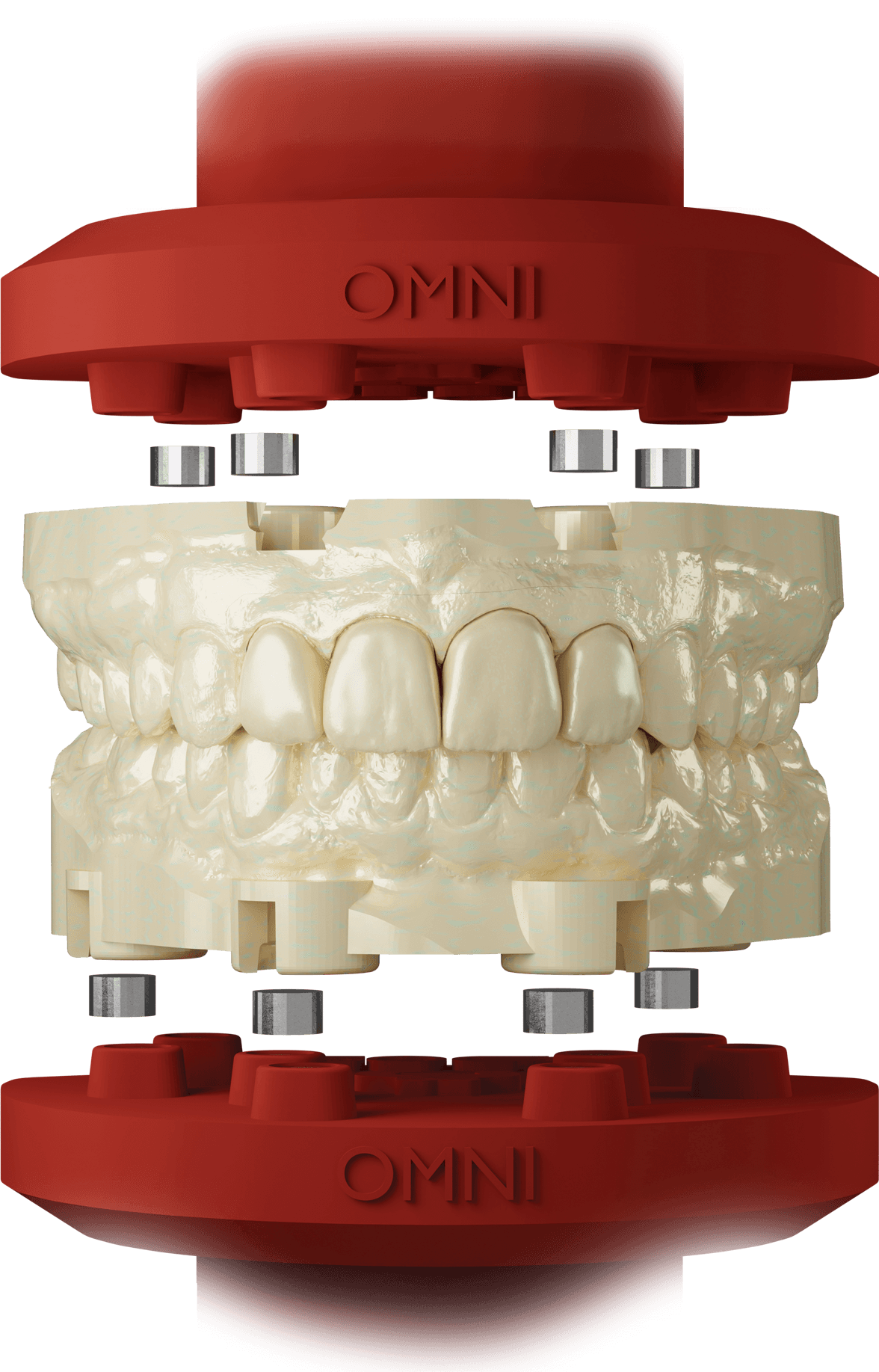
DACOS Omni Setup This page is designed for desktop use.
Open it on a computer to access the full installation guide.
This private area is designed to get you operational fast, with the correct files, correct installation order, and a direct path to your DACOS workflow.
— Step 1
Gemini Calibrator
The Gemini Calibrator is the physical reference that normalizes the vertical quota of your articulator. It must be printed with the same printer, resin, and settings you will use for every future production model. This is non-negotiable.

System rule — offset consistency. The offset you select for the Gemini Calibrator must match the offset used in your CAD libraries and Exocad plates. Mixing offsets across components will cause seating errors. Select one offset. Use it everywhere. Standard is recommended for most workflows.
Before printing the full calibrator — print the fitting_TEST STL included in the folder to verify your printer's dimensional accuracy without wasting resin. Only proceed to the full Gemini after confirming the correct offset fits.
Minimal vertical height. Faster printing, reduced resin. Ideal for crown & bridge, smaller arches, and standard daily workflows. Use with DACOS Omni Light attachments.
Balanced height for full-arch and implant-supported cases. Added handling stability for complex workflows and teaching environments. Use with DACOS Omni Ultra attachments.
— Step 2
CAD Libraries
Install the DACOS Omni libraries in your CAD software before generating any production model. Libraries must match the same offset selected for the Gemini Calibrator. Restart your software after installation.
Critical — offset coherence. The attachment library offset must match the Gemini Calibrator offset you already printed. If your calibrator is Standard, your libraries must also be Standard. This rule applies to all software platforms.

Install both the Plate Library and the Attachment Library. Restart Exocad after copying the files. DACOS Omni will appear in the plate and attachments selection menu inside Model Creator.
C:/exocad/dentalCADApp/library/modelcreator/platesC:/exocad/dentalCADApp/library/modelcreator/attachmentsPlate Library
Plates are optional. They exist for one reason: to automatically set the correct model height for each DACOS Omni configuration — 40 mm for Light and Ultra Static, 55 mm or 65 mm for Ultra Dynamic. If you need a flat gingiva, extra-dies or any other base option, you can skip this library entirely and design your model with plateless model — the attachment library works independently. Only install the plate library if you want Model Creator to handle the Z-height automatically.
Attachments Libraries
Download the offset that matches the Gemini Calibrator you already printed. If you printed Standard, download Standard. Mixing offsets between the calibrator and the attachment library will cause seating errors. Light and Ultra attachments are separate — download the series that matches your plate configuration.
DACOS Omni LIGHT
Attachments Libraries Italian 🇮🇹
DACOS Omni LIGHT

DACOS Omni Complete Bundle · All offsets + all combinations · Light & Ultra, single download URL

Inside the DACOS® Omni module, you’ll find everything you need to design, adapt, and manage your magnetic attachments directly in Blender for Dental.
DACOS Omni for Blender for Dental is available as a dedicated module directly on the B4D platform. All files, instructions, and video tutorials are included inside the module after purchase.
— Step 3
Complete Installation Sequence
Follow this sequence exactly. Steps 04–05 are one-time installation procedures. Steps 06–08 are your daily production workflow once the articulator is calibrated.
Download the Gemini Calibrator STL from DACademy. Choose the offset that matches your printer — Standard for most systems. Print it on the same printer, resin, and settings you will use for every production model. This is the physical reference the entire system is built around. If the offset is wrong, every model printed afterward will seat incorrectly.
One-time · Non-negotiableBranded articulator: fix the upper Omni plate using the provided screw or split-cast interface. Flex workflow: join upper and lower Flex plates with the Gemini Calibrator as a single block, align to the Bonwill triangle with an elastic band. Set the incisal pin to zero. Fill the lower plate cavity with plaster or curable resin. Close the articulator and keep it closed until fully cured. Performed once per articulator.
One-time · Per ArticulatorInstall the DACOS Omni plate and attachment libraries in your CAD software. Use the same offset selected for the Gemini Calibrator.
One-timeSelect DACOS Omni as the plate or model type in your CAD software. Choose the configuration matching your calibrator series: Light 40 mm, Ultra Static 40 mm, Ultra Dynamic 55 mm, or Ultra Dynamic 65 mm. Apply the attachment library using the same offset as the Gemini Calibrator. Do not manually adjust model height — the library sets the correct Z automatically.
Daily ProductionPrint using the same printer, resin, and settings as the Gemini Calibrator. Do not place supports inside the magnet socket borders. After printing, load all magnets into the GlueJet or GlueJet Spider in one operation — the tool sets polarity automatically. Apply cyanoacrylate inside the sockets, insert magnets, and hold each flush with the presser tip for 10 minutes. Do not rush curing.
Daily Production— Video Walkthrough
Watch the Full Installation Tutorial
Follow this sequence exactly. Steps 04–05 are one-time installation procedures. Steps 06–08 are your daily production workflow once the articulator is calibrated.