Try it now: the speaker and the CAD, together.
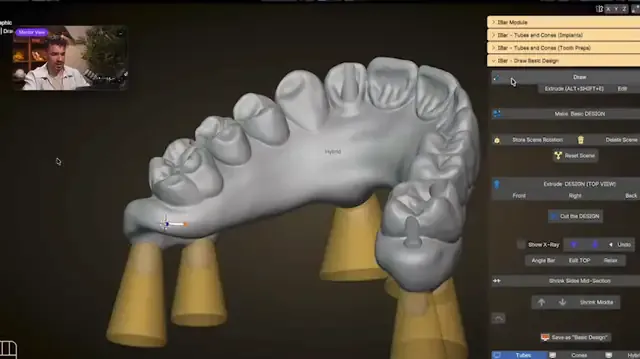
DualView shows the speaker and his screen in the same lesson, side by side or one inside the other. Some courses have it.
English: machine transcript of the audio. Italian: translation by DACademy. To be checked.
Quality
Per view
That was 30 seconds. The courses have the whole lesson.
Transcript
English: machine transcript of the audio. Italian: translation by DACademy. To be checked.
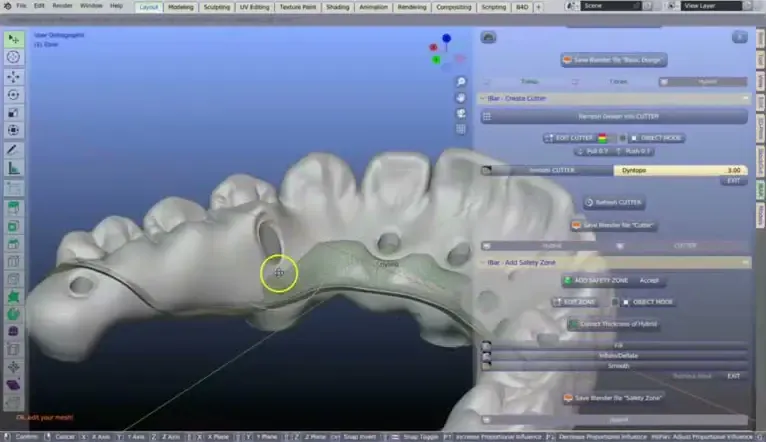
30 real seconds from iBar Architect with Mike Teiniker: an excerpt, not the whole lesson.
Keyboard shortcuts
- Space or K
- Play, pause
- J L
- 10 seconds back, forward
- , .
- One frame, with the video paused
- Shift + , .
- Slower, faster
- + − 0
- Small window: larger, smaller, normal
- S
- Swap the views
- 1 2 3
- Side by side, small window, one view
- C
- Subtitles
- M
- Sound
- F
- Full screen
Courses with DualView
They are two real videos, speaker and CAD, and you can choose the quality of each. Not every course has DualView: it is marked on the card.



1 of 4
CAD large, speaker small
Drag the small window to a corner. Double click, or the S key, swaps it with the CAD.
Drag the small window to a corner. A tap swaps it with the CAD.
2 of 4
You choose the size
Mouse wheel over the small window: larger or smaller, as much as you like. Or drag its inner corner, or use + and −.
Two fingers on the small window make it larger or smaller. Or drag its inner corner.
3 of 4
Subtitles, speed, views
CC: subtitles in Italian or in English. 1×: speed. Next to them, the three views and the settings. In the transcript, click a line to go back to it.
In Settings: subtitles in Italian or in English, speed, quality. In the transcript, tap a line to go back to it.
4 of 4
Press Play
The speaker starts, with sound. The CAD follows him, in sync.
The speaker starts, with sound. The CAD follows him, in sync.